Slow HP Laptop? SSD and RAM Upgrade Guide for Indore Users
By HP Service Center Indore · · 6 min read
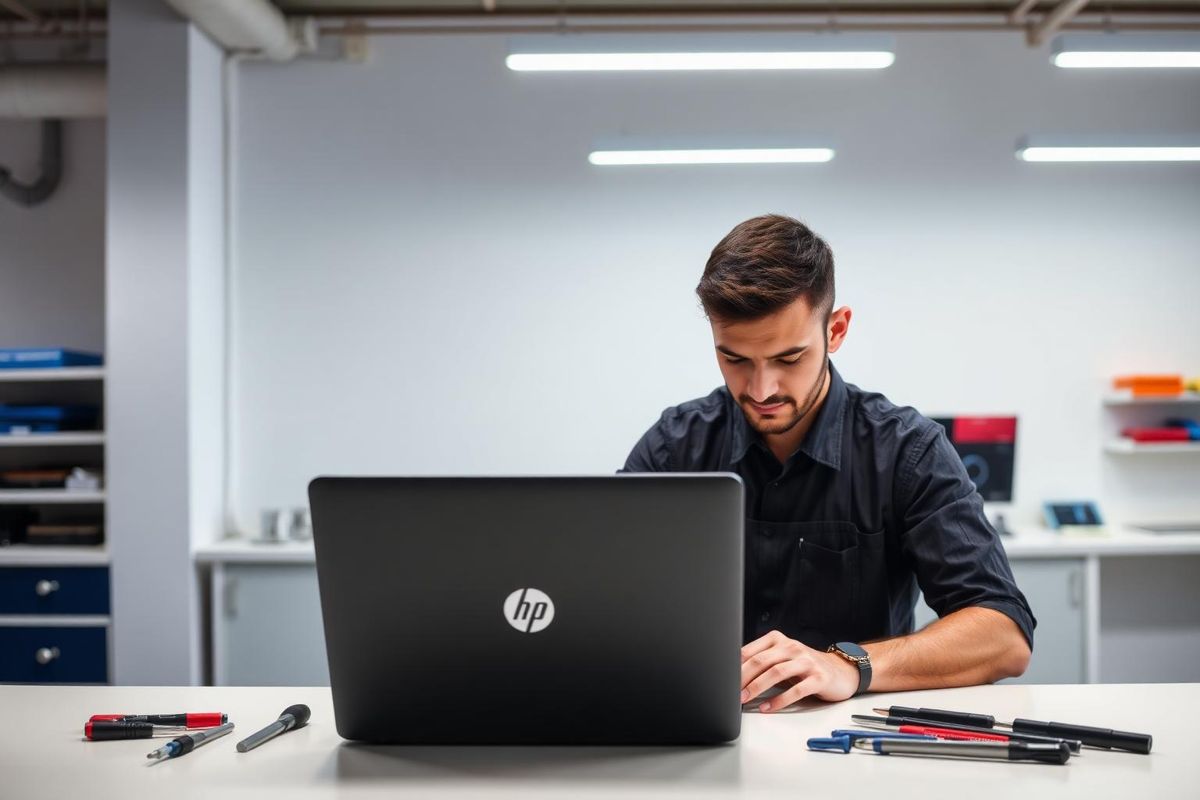
An HP laptop that takes minutes to start and freezes when you open a browser is not necessarily ready for the scrapyard. In many cases a storage or memory upgrade brings it back to life for a fraction of the cost of a new laptop. Here is how to figure out what your laptop needs.
Why laptops slow down
- An old mechanical hard disk (HDD) that is slow and struggling
- Too little RAM, such as 4 GB, for modern Windows and browsers
- Storage almost full, leaving no room for Windows to work
- Many programs starting automatically at boot
- Malware or unwanted browser extensions
- Heat that forces the processor to slow itself down
Find out what is slowing yours
Open Task Manager with Ctrl + Shift + Esc and watch the Performance tab while the laptop feels slow. If Disk is stuck near 100 percent, storage is the bottleneck. If Memory is nearly full, you need more RAM. If CPU is constantly high, look for a runaway program or heat issues.
SSD upgrade: the biggest speed boost
Replacing an HDD with an SSD is usually the most noticeable upgrade for an older laptop. Start-up, app loading and file opening become dramatically quicker. Your technician needs to check which type your HP model supports, such as a 2.5-inch SATA drive or an M.2 SSD (SATA or NVMe), since they are not interchangeable in every slot.
Your existing Windows and files can be cloned to the new SSD, or Windows can be installed fresh. Either way, back up your important data first.
RAM upgrade: how much do you need?
RAM must match your laptop's type, for example DDR3, DDR4 or DDR5 in laptop (SO-DIMM) size. Be aware that some slim HP laptops have RAM soldered to the board and cannot be upgraded, or have only part of it upgradable, so the model must be checked first.
- 4 GB: very tight for Windows 10 or 11 with a browser, usually worth upgrading.
- 8 GB: comfortable for general office work, browsing and online classes.
- 16 GB: better for heavy multitasking, editing and design work.
Do these free fixes too
- Disable unnecessary startup apps in Task Manager.
- Uninstall programs you no longer use and clear the temp files and Downloads folder.
- Keep at least 15 to 20 percent of storage free.
- Run a malware scan and remove unknown browser extensions.
- Have the fan and vents cleaned if the laptop is also hot.
A note about Windows versions
Windows 10 reached the end of its support period in October 2025, which means it no longer receives regular free security updates. If your HP laptop's hardware supports Windows 11, upgrading is recommended. A service center can check compatibility, since requirements include a supported processor and certain security features.
HP SSD and RAM upgrade in Indore
Share your laptop's model number on WhatsApp and we will tell you which upgrades it supports and what to expect. Call 9893530207 or visit us near Kalani Nagar Square, Anjani Nagar.
Frequently asked questions
Can every HP laptop take an SSD?
Most can, but the drive type and slot differ by model. A technician must check whether your laptop uses a 2.5-inch drive or an M.2 slot, and which interface it supports.
How much RAM do I really need?
For everyday use with Windows 10 or 11, 8 GB is a comfortable level. If you multitask heavily or do creative work, 16 GB is a better target.