
HP Printer Not Printing? 8 Common Problems and How to Fix Them
By HP Service Center Indore · · 6 min read
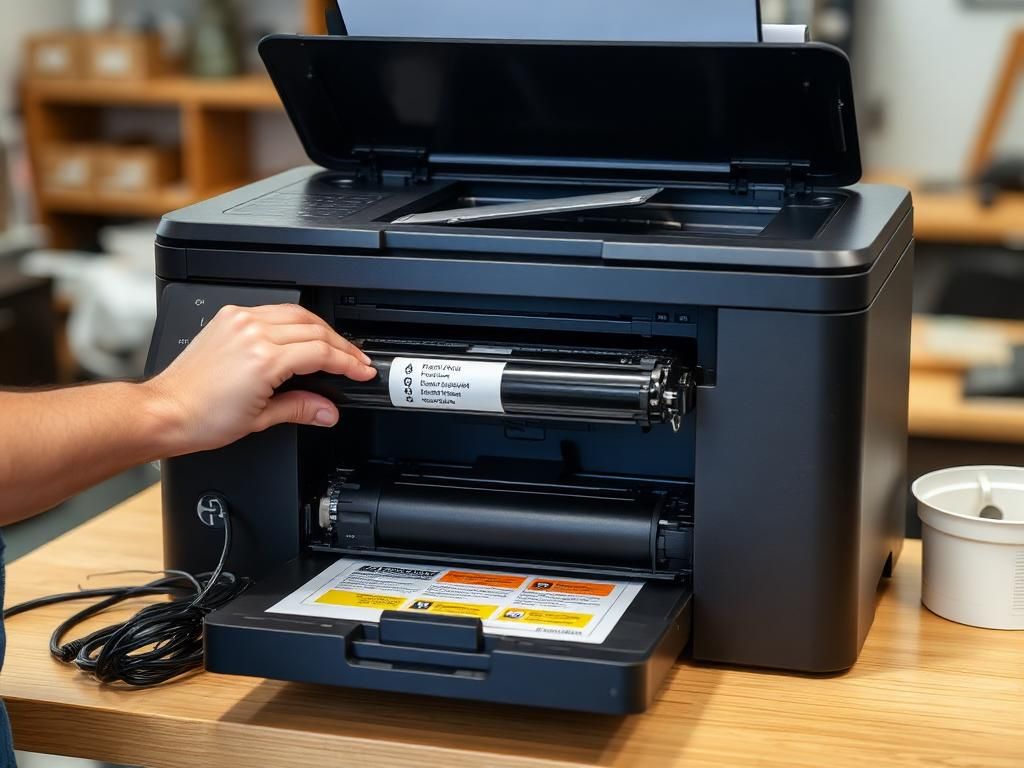
HP printers are everywhere in Indore homes, shops and offices, and the same handful of problems account for most breakdowns. Here are eight of the most common issues and the safe fixes to try before booking a repair.
1. Printer shows offline
Check that the printer is switched on and connected to the same Wi-Fi network as your computer, or that the USB cable is firmly plugged in. In Windows, open Printers and Scanners, choose your HP printer and make sure Use Printer Offline is not ticked. Restart the printer, router and computer if needed.
2. Documents stuck in the print queue
Open the print queue and cancel all documents. If they refuse to clear, restart the Print Spooler service from the Windows Services app, then try printing a single page.
3. Wi-Fi printing problems
Install the HP Smart app on your phone or computer and use it to reconnect the printer to your network. Many home printers work on 2.4 GHz Wi-Fi, so make sure your router offers it. If you changed your router or password, the printer must be set up again.
4. Paper jam
Switch the printer off and pull the jammed sheet out gently in the direction of the paper path. Check both the front tray and the rear access door and remove every torn piece. Pulling hard can damage the rollers. Use the correct paper type, do not overfill the tray and fan the sheets before loading them, especially in humid monsoon weather when paper absorbs moisture.
5. Faded lines, streaks or blank pages
For inkjet and ink tank printers, run the print head cleaning and alignment options from the printer software or the HP Smart app. Printers left unused for weeks can have dried ink that clogs the nozzles, so print a page or two regularly. For LaserJet printers, streaks usually point to the toner cartridge or drum.
6. Cartridge not recognised
Remove the cartridge, check the contacts for dirt, and reinstall it firmly until it clicks. Some printer models can reject refilled or incompatible cartridges, so if the error continues with a non-original cartridge, test with a known good one.
7. Error lights or codes
Blinking lights usually mean a specific issue such as ink low, paper out, carriage jam or a hardware fault. Note the pattern or error code displayed and search it with your printer model, or send it to us. Switching off, unplugging for a minute and starting again can clear a temporary glitch.
8. Printer not detected by computer or phone
Try another USB cable or port, reinstall the printer driver from HP's official support website and restart. For network printers, print a network configuration page to check the printer's IP address.
When to book printer repair
We repair HP DeskJet, Ink Tank, LaserJet and all-in-one printers. When you visit, bring the power cable and a sample of a bad print. Call 9893530207 or message us on WhatsApp.
- Grinding or clicking noises when printing
- Repeated paper jams even when no paper is stuck
- Error persists after reinstalling drivers and resetting the printer
- Burning smell, power problems or a printer that will not switch on
- LaserJet issues such as fuser errors or heavy smudging
Frequently asked questions
Why does my HP printer say offline when it is on?
This usually means the computer and printer are not on the same network, the printer lost its Wi-Fi connection, or the Windows setting for using the printer offline was switched on.
Is it okay to use refilled cartridges?
They can work on many printers, but quality varies and some printer models may reject them. If you see recognition errors, try an original cartridge.