
HP Laptop Overheating in Indore Summer: Causes, Quick Fixes and Service
By HP Service Center Indore · · 5 min read
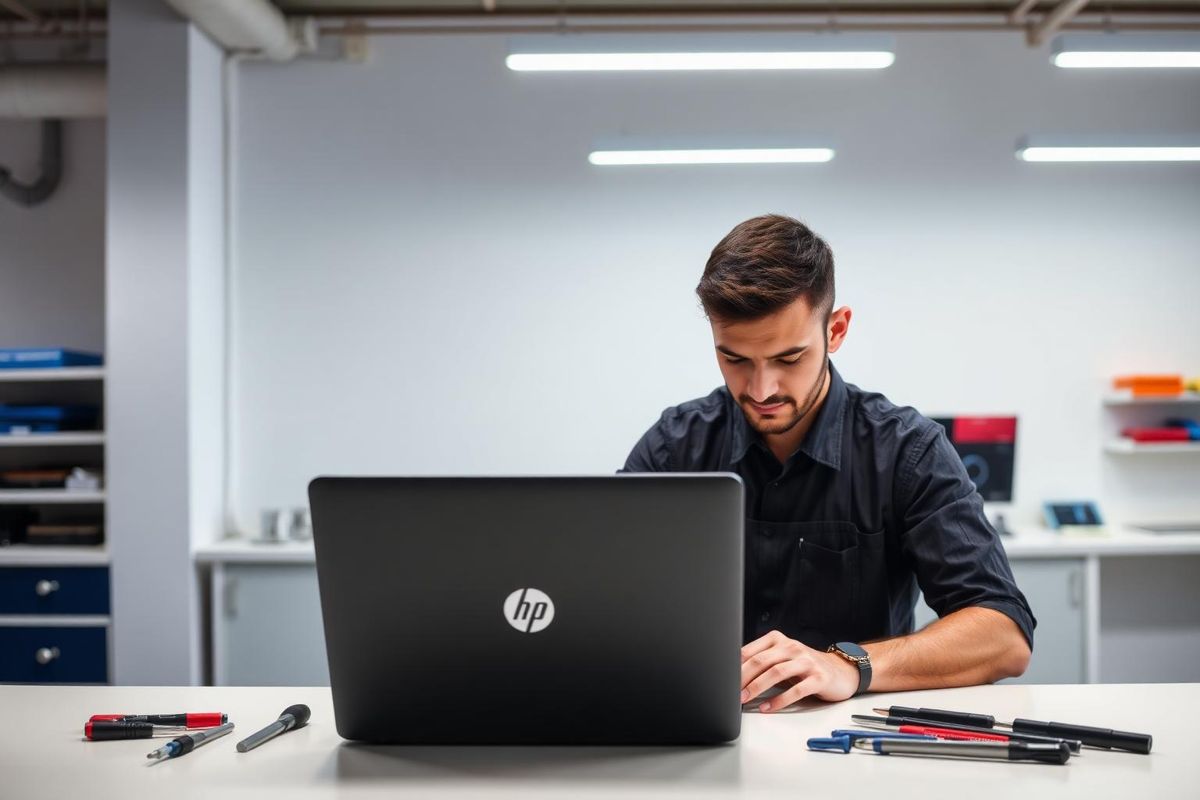
When summer temperatures climb in Indore, laptops struggle to get rid of heat. A hot keyboard, a roaring fan, sudden slowdowns or unexpected shutdowns are all signs your HP laptop's cooling system is under stress. Most overheating issues are fixable, and fixing them early protects your processor, battery and motherboard.
Why HP laptops overheat
- Dust and lint clogging the vents, fan and heatsink fins, which is very common in dusty city conditions
- Old, dried thermal paste between the processor and the heatsink
- A worn fan that spins slowly or makes a grinding noise
- Blocked airflow from using the laptop on a bed, lap or cushion
- Too many programs, browser tabs or background apps keeping the processor busy
- A battery that is ageing and running hot
Quick things to try today
- Place the laptop on a hard, flat surface or a cooling stand so the vents can breathe.
- Open Task Manager (Ctrl + Shift + Esc) and see which app is using high CPU. Close it or uninstall it.
- Restart the laptop and install pending Windows and driver updates.
- Run a malware scan, since hidden mining or adware can keep the processor busy.
- Lower the power mode to Balanced in Windows settings if you do not need maximum performance.
- Keep the laptop out of direct sunlight and away from heaters or hot surfaces.
Test your fan
Restart your HP laptop and press F2 to open HP PC Hardware Diagnostics UEFI, then run the fan test from the component tests. If the fan fails the test, or you never hear it start under load, the fan needs to be cleaned or replaced.
What a proper cooling service includes
- Opening the laptop and removing dust from the fan, vents and heatsink
- Checking the fan bearing and replacing the fan if it is noisy or weak
- Removing old thermal paste and applying fresh paste to the processor (and graphics chip where fitted)
- Checking the battery and charging area for abnormal heat
- Testing the laptop under load to confirm temperatures are stable
Mistakes to avoid
- Do not use a hair dryer or blow compressed air straight into a fan while it can freely spin, as this can damage the fan. The fan should be held still while cleaning.
- Do not keep using a laptop that shuts itself off repeatedly from heat.
- Do not open the laptop if you are not experienced. Fine ribbon cables and clips break easily.
How to prevent overheating
In dusty and hot conditions, a cleaning service about once a year keeps the cooling system healthy. Use the laptop on a hard surface, keep vents clear and avoid leaving heavy apps running when you are not using them.
HP laptop heating problem repair in Indore
If your HP laptop is overheating, call 9893530207 or send us a message on WhatsApp with your model and a short description. We will check the fan, heatsink and thermal paste and tell you what is needed.
Frequently asked questions
How often should I clean my HP laptop's fan?
In dusty or hot conditions, once a year is a sensible interval. If you notice louder fan noise or higher heat sooner, get it checked earlier.
Does thermal paste really need replacing?
Thermal paste dries out over time and transfers heat less effectively. Replacing it during a cooling service is a common fix for laptops that have become hot and noisy with age.